RecipeClip for Chrome: Save the Recipe on Your Screen
Our Chrome extension is out. Click the toolbar icon, press a shortcut or right-click, and the recipe on the page lands in your RecipeClip library.
RecipeClip now has a Chrome extension. Add it from the Chrome Web Store, open a recipe, and click the RecipeClip icon in your toolbar. The ingredients and steps land in your library as text you can search, scale and cook from. The extension is free and works with a free RecipeClip account.
Until this week, saving a recipe from your laptop meant copying the link and pasting it into RecipeClip. That still works, and on a phone it is still the way to do it. The extension is for the pages where a pasted link comes back empty. (Our guide to recipe web clippers compares the two approaches across other apps too.)
Why a pasted link sometimes fails
When you paste a link, our server fetches the page fresh, as a visitor the site has never seen. Most recipe sites hand that visitor the full recipe. Some do not:
- Sites that block automated visitors send back an error page instead of the recipe.
- A recipe behind a subscriber login shows our server the sign-in wall.
- Instagram puts a login wall in front of most posts.
The extension reads the page you already have open. That is the signed-in version, after the page has finished loading, with the caption sitting under the post. If the recipe is on your screen, the extension can usually read it.
Three ways to save
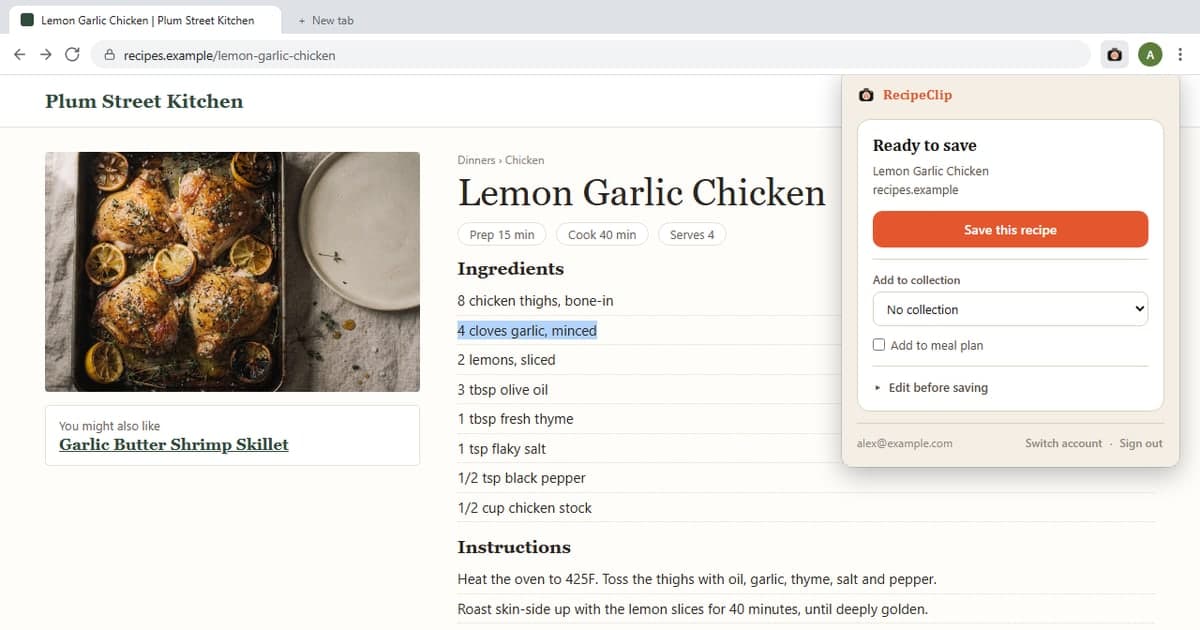
The toolbar button. Click the RecipeClip icon and a small panel shows the recipe it found and the site it came from. Before you press Save you can:
- file it in a collection
- add it to your meal plan for a chosen day and meal
- open "Edit before saving" to fix the title, set the servings or leave yourself a note
The keyboard shortcut. Press Ctrl+Shift+S, or Command+Shift+S on a Mac. The recipe saves right away and a notification tells you it worked. You can change the shortcut at chrome://extensions/shortcuts.
The right-click menu. It has three uses:
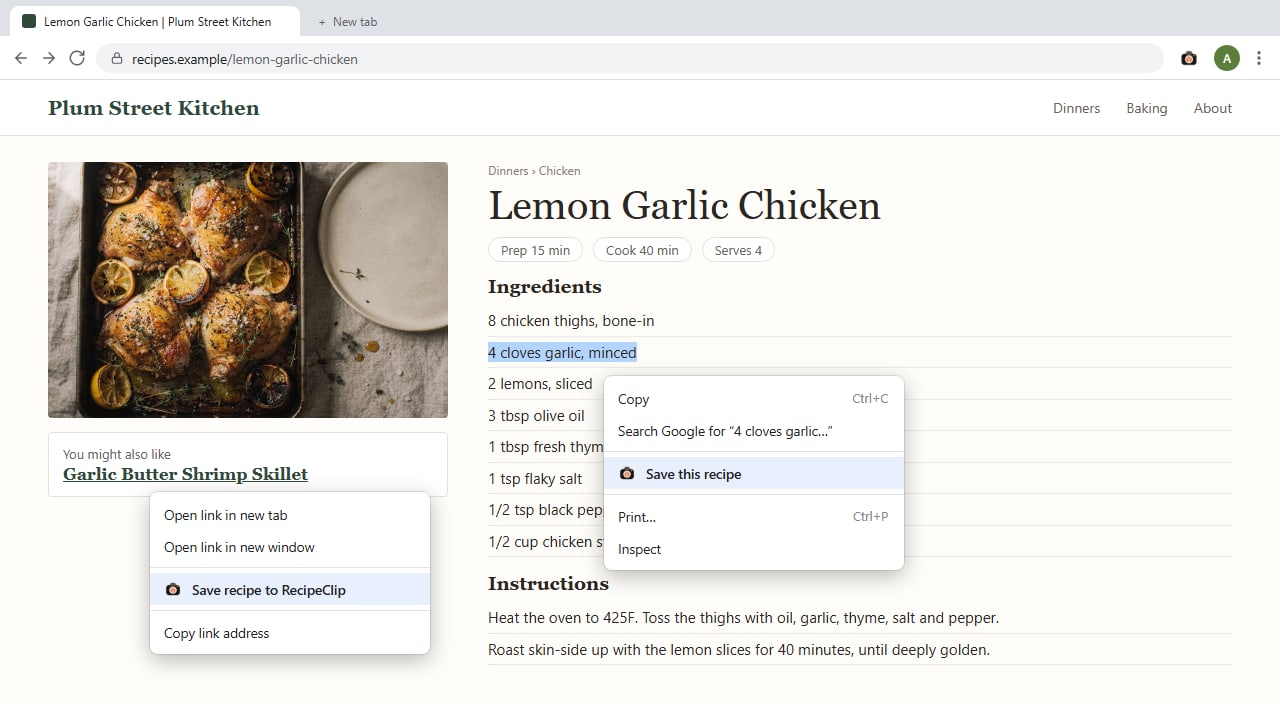
- Right-click anywhere on a recipe page and choose "Save this recipe."
- Right-click a link to a recipe and choose "Save recipe to RecipeClip." The recipe saves without you opening the page. This one has our server fetch the link, so it has the same limits as pasting a link.
- Highlight part of a page, right-click, and save only what you selected. This helps when the recipe sits in a forum post or a comment, or when a page holds three recipes and you want one.
TikTok, Instagram, YouTube and Pinterest
On TikTok, Instagram and YouTube, the extension reads the caption or the video description. When the creator typed the recipe out, you get it in one click.
Plenty of creators leave the recipe out of the caption and only say the amounts in the video. For those, paste the link into RecipeClip, which watches the video and writes the recipe out for you. Our free TikTok and Instagram tools do the same without an account. The guides to saving recipes from TikTok and Instagram cover where else the recipe tends to hide.
A Pinterest pin usually points at a recipe on another site. The extension spots that and offers to open the source page, where you can save the full recipe.
When a save goes wrong
- You already saved it. The extension checks your library first and offers to open the copy you have, or save a second one anyway.
- You are offline, or our server is having a bad minute. The save waits on your computer and tries again every 5 minutes, up to 6 times.
- It read the page wrong. Click "This didn't work" and report it from the panel. We keep the page address and up to 4,000 characters of what the extension read, so we can fix how it handles that site.
What the extension can see
- It reads a page only when you click the icon, use the right-click menu or press the shortcut, and only in that tab. It cannot see your other tabs or your browsing history.
- It talks to one site, recipeclip.app, and has no analytics or tracking code.
- You sign in on recipeclip.app, so the extension never sees your password. If you are already signed in there, it connects on its own.
- Pages without standard recipe markup have their text sent to Google Gemini to pull out the recipe. We keep the recipe, not the text it came from.
The privacy policy has a section on the extension with the full list of what it sends.
What it costs
The extension is free. Saves go into your RecipeClip library, so they count toward the free plan's 50-recipe limit like any other save. Most recipe sites publish standard recipe markup, and on those pages the extension reads the recipe straight from it without AI, so the ingredient list matches what the site published.
Getting started
- Open RecipeClip in the Chrome Web Store and click Add to Chrome.
- Click the puzzle-piece icon in Chrome's toolbar and pin RecipeClip so its icon stays in view.
- Open a recipe and click the icon. The first time, it opens recipeclip.app to connect your account. You can make a free account there if you do not have one.
Edge, Brave and other browsers built on Chromium can install extensions from the Chrome Web Store, but we have only tested ours in Chrome. There is no Firefox or Safari version. On a phone, paste the link into RecipeClip as before.