Recipe Web Clipper: The Best Ways to Save Any Recipe with One Click
A recipe web clipper saves recipes from any website into your library automatically. Here's how they work and which option is best in 2026.
You're reading a recipe on a food blog. You want to save it. You could copy-paste the ingredients into a notes app, but that takes 10 minutes. You could bookmark the URL, but those go stale. You could screenshot it, but then you can't search it later.

A recipe web clipper solves this: one click, and the recipe is extracted and saved to your library: title, ingredients, steps, and all.
What Is a Recipe Web Clipper?
A recipe web clipper is a tool that reads a recipe page from any website and extracts the structured content (ingredients, instructions, servings, cook time), then saves it to your recipe library.
The best ones:
- Work on any recipe website (not just a curated list)
- Extract ingredients and steps as text (not just a screenshot of the page)
- Store the full recipe in the app so broken links don't lose your recipe
- Work on mobile and desktop
There are two main types: browser extension clippers and in-app URL import.
Browser Extension Clippers
A browser extension sits in your toolbar. You're on a recipe page, click the icon, and the recipe is saved. Fast.
How they work: The extension reads the page's structured data (most major recipe sites use Recipe schema markup, a standard format search engines use to understand recipes). The extension parses this schema and extracts the fields.
If a site doesn't have schema markup, smarter clippers fall back to reading the HTML and guessing where the ingredients are. This works maybe 70% of the time on sites without schema.
Best browser extension clippers:
- Paprika's Recipe Importer — requires the Paprika app, good success rate on major recipe sites
- Plan to Eat Clipper — works well for their format, requires a subscription
RecipeClip deliberately isn't on that list. It has no browser extension; you paste the URL instead. One less thing to install, and it works the same on your phone, where you find most recipes anyway.
In-App URL Import (The Better Method)
The more reliable approach: paste the URL into your recipe app, and the app does the extraction server-side.
This beats a browser extension because:
- The server can handle JavaScript-rendered pages (many modern recipe sites render ingredients via JS, which extensions can miss)
- No browser extension to install
- Works the same on mobile and desktop
- Can fall back to AI parsing if structured data isn't present
RecipeClip uses this method. Paste any URL and it extracts the recipe in under 5 seconds. If the page has standard recipe markup, it's perfect extraction. If not, the AI does its best to identify and structure the content.
Photo Clipping (For Non-Web Recipes)
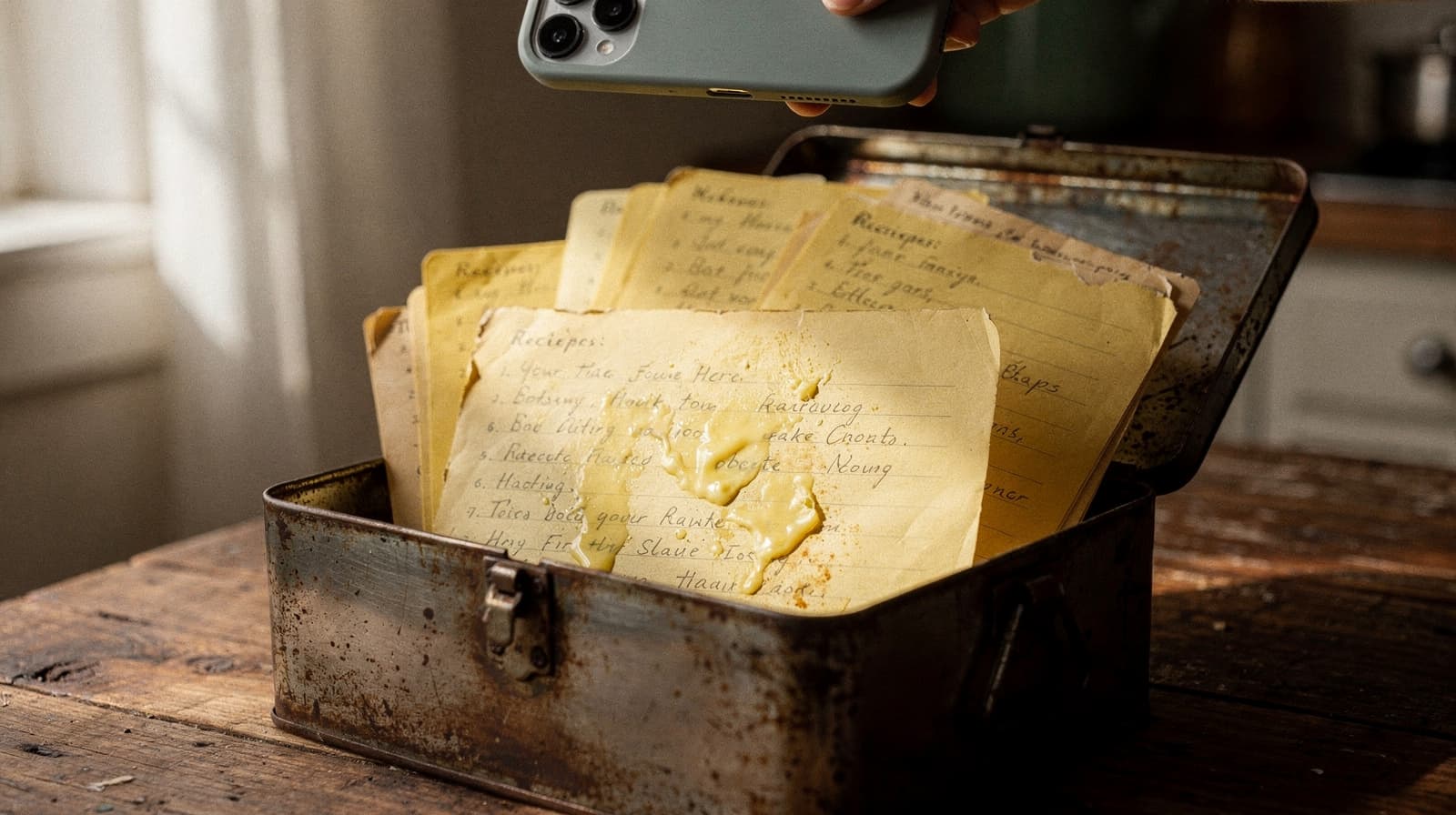
The newest form of recipe clipping: AI photo scanning. Point your camera at a cookbook, a printed recipe card, a magazine page, or a screenshot, and the app reads it.
This is useful for:
- Cookbooks you own (digitize your whole library)
- Recipes handed down on index cards
- Screenshots of TikTok or Instagram recipes
- Recipes from print media
RecipeClip supports this. Snap a photo in the app, and the AI extracts the ingredients and steps using OCR combined with recipe-aware parsing. It's not perfect on handwritten text, but printed recipes come through cleanly.
Saving Recipes from Specific Platforms
From Food Blogs and Recipe Sites
Paste the URL into RecipeClip. Works on AllRecipes, Food Network, NYT Cooking, Serious Eats, Bon Appétit, Smitten Kitchen, and hundreds of others that use standard recipe schema.
For sites behind a paywall (NYT Cooking, Epicurious premium), you need to be logged in to the site first; the clipper can't bypass paywalls.
From Instagram
Instagram doesn't expose recipe text programmatically. Your options:
- If the creator has a linked website, use that URL
- Screenshot the recipe frame and use photo import
- Manually type the key details
See our guide on saving recipes from Instagram and TikTok for the full workflow.
From YouTube and TikTok Videos
Video recipes can't be directly clipped, because there's no text to extract. Best approach:
- Check the video description (many creators post full recipes there)
- Check the creator's linked website
- Screenshot and use photo import for step frames
From PDFs
Most recipe apps don't import PDFs natively. Your workarounds:
- Open the PDF in a browser and paste the URL if it's hosted online
- Screenshot each page and use photo import
- Use a PDF-to-text converter, then paste into manual recipe entry
What to Look for in a Recipe Clipper
Extraction quality: Does it get all the ingredients, correctly? Does it handle servings and cook times? This varies significantly between tools.
Fallback handling: What happens when the site doesn't have schema markup? A good clipper uses AI to parse the page instead of failing completely.
Storage model: Does it store the recipe content or just the link? Link-only clippers are useless when the source site goes down.
Search after saving: Can you find your clipped recipe by ingredient later? A recipe clipper is only useful if the saved recipes are findable.
Mobile support: You'll find recipes on your phone. The clipper needs to work there too.
Building a Recipe Library with a Clipper
The most effective workflow for building a recipe collection:
- Install the app and create an account
- Import your top 20 existing recipes from URLs you remember or have bookmarked
- Clip going forward: every new recipe you encounter, clip it immediately instead of bookmarking
- Weekly batch: once a week, go through Instagram saves and social bookmarks, clip what's worth keeping
- Tag as you clip: add 2-3 tags at save time — cuisine, meal type, main ingredient
Within a month, you'll have a searchable library of everything you actually want to cook.
The Best Recipe Web Clipper in 2026
For most users: RecipeClip's URL import + photo scan combination is the most complete solution. URL paste for websites, photo scan for physical cookbooks and screenshots, manual entry for anything else.
All three land in the same searchable library, tagged and organized, on any device. Free is 50 recipes, 20 AI imports a month, and 3 collections; Pro is $6.99 a month, or $59 a year when you outgrow it.
Clip the recipe you have open right now. Paste the URL, watch it come back as a card, and decide from there. That's the only test that matters. No credit card required.